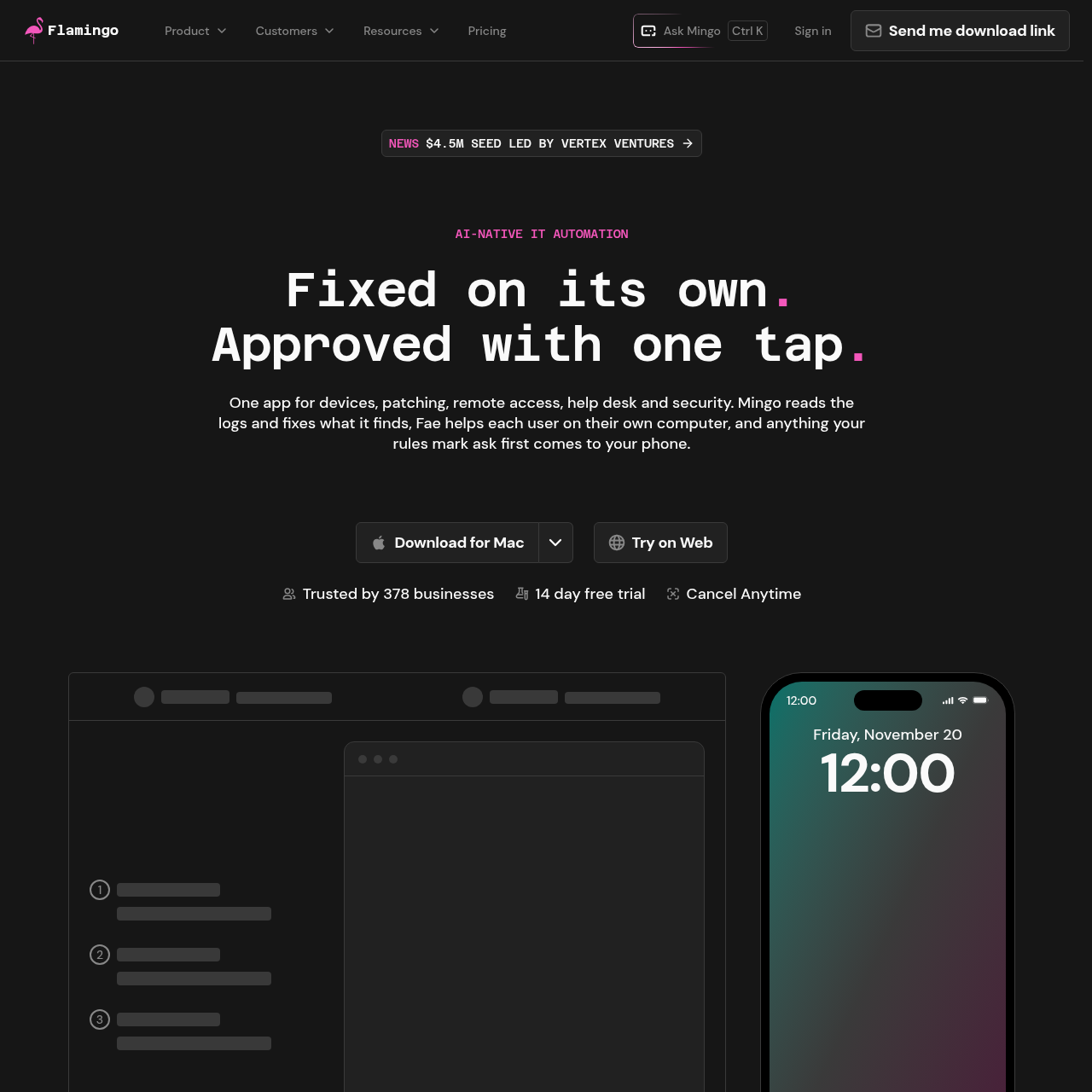
OpenFrame brings device inventory, patching, help desk tickets, and security monitoring into one IT platform, with separate AI assistants for technicians and employees.
Code & ITSchedule software updatesBrowse device inventory,View connected Microsoft 365 and Google…Shared device record
Listed on AIToolly
What Is OpenFrame? Product Overview
What the product does and how it is positioned
OpenFrame is designed for managed service providers, managed security service providers, and in-house IT teams. Its tools use a shared device record for tasks such as patching, remote support, and ticket tracking.
Employees can ask Fae for help on their own computers, while technicians can ask Mingo about managed devices. Approval rules determine which actions need review, and commands targeting multiple devices always require approval.
What Can You Use OpenFrame For?
Source-supported ways to use the product
Help employees with printer issues
An employee can report a printer connection problem to Fae, which can reinstall the printer driver under the applicable rules.
Schedule an application update
A technician can request an application update across managed Macs for a specified time. The command waits for technician approval because it targets multiple devices.
How to Use OpenFrame
The documented workflow, where available
1
Submit a request
An employee asks Fae for help on their computer, or a technician gives Mingo a plain-language request.
2
Review actions that need approval
When a rule requires approval or a command targets multiple devices, the technician can review the proposed command in the iOS or Android app before approving it.
3
Consult the help desk history
Requests, fixes, and approvals are recorded in the help desk history for later review.
Approval rules and logging
OpenFrame lets technicians set rules by action and client. A multi-device command waits for approval even when the action itself is not marked as requiring review.
The mobile approval request shows the proposed command before it runs.
The approval record identifies the action, approver, and timestamp.
What to Test Before Choosing OpenFrame
Checks to run with your own material and workflow
Confirm that action-by-action and client-by-client rules match the team's approval requirements.
Review whether the mobile approval requirement for multi-device commands fits the team's patching process.
Verify whether the documented Microsoft 365 and Google Workspace tenant views are sufficient without user and license synchronization or offboarding.